User Manual
Background
After finishing a significant piece of writing in 2018, I was curious about two particular statistics of my document: how many unique words did it have, and how often did each of these unique words occur? Moreover, I wanted to know exactly what these words were. Lastly, I wanted the analysis to recognize two different languages and differentiate between words in each language.
I wrote my document in Microsoft® Word, which can provide some basic document statistics (page, word, character, paragraph and line counts). While of interest, this was not what I was looking for. After searching online for tools and not finding one that suited my needs, I decided to write my own. I called it Word Stats, given that I was looking for statistics of my Word document. When I tried to analyze it in my software however, I found the analysis to be extremely slow. When optimization attempts didn’t lead anywhere, I decided to focus on analyzing plain text files instead, with exciting results.
Word Stats is available as a Windows app and as the web app you are currently using; both are free. This manual explains how the web app works.
Interface language
The interface language, i.e., the language and locale used by the website, is selected from the language menu at the top of the page. Open the menu and choose English, Nederlands, Deutsch or Español. Selecting a language returns you to the home page with the interface updated immediately. It is recommended to select the desired interface language before proceeding with an analysis.
File selection
By design, Word Stats operates exclusively on plain text files; see Appendix A for details. The file to be analyzed must have a *.txt extension and can be selected and uploaded from the home page.
Options
After uploading a file, a new page opens where several options can be selected to control the analysis.
The primary and optional secondary analysis language.
Word Statsis bilingual, meaning that its can recognize words from two different languages simultaneously. The available analysis languages are Dutch, English, French, German, Italian, Portuguese and Spanish, with different locales and different features supported, as per the overview below.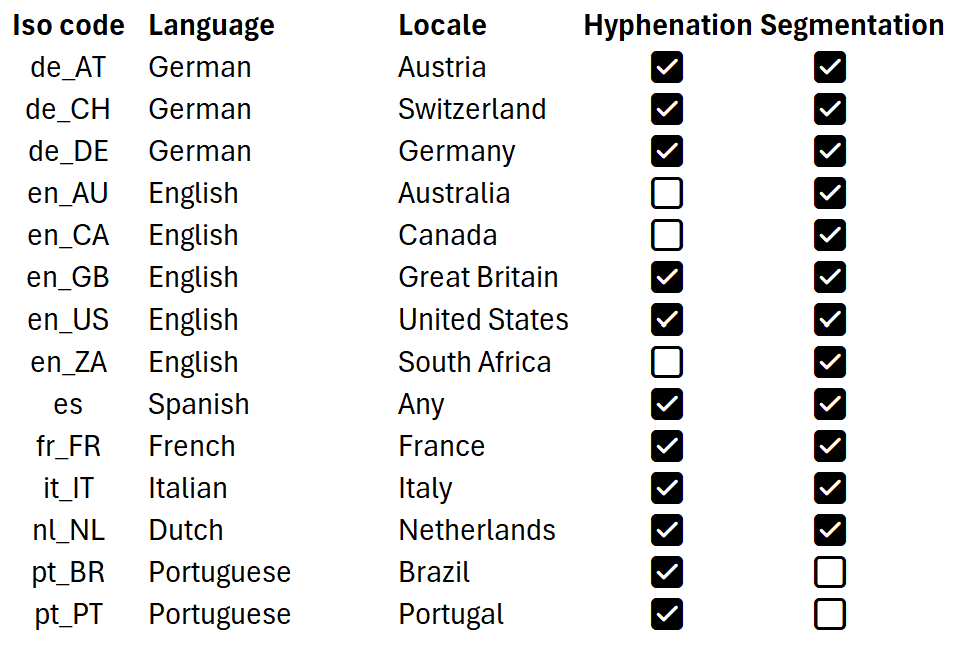
The default primary analysis language follows the selected interface language: English (US), Dutch (NL), German (DE) or Spanish. It can be changed as needed. Note: the
Word StatsWindows app allows additional languages to be installed.Hyphenation settings. Hyphenation rules differ per language and locale, and can in some cases be modified. Specifically, the number of letters before the first and after the last hyphen may be modifiable, independently for compound and non-compound words . If this is supported for the selected language, the default value is shown and can be modified; options are 2 or 3. If the hyphenation settings for the selected language cannot be modified, the selection boxes are grayed out and disabled. If you don't know if and how to modify these settings, it is recommended to keep the default values.
Word rules. You can overrule the acceptance and rejection of words by the built-in spellchecker. This is done by specifying a list of words that should be accepted and/or a list of words that should be rejected independently of spellcheck results. Clicking or tapping the ellipsis (...) button that follows the Words to accept and Words to reject labels opens or hides the textbox where these lists can be entered. Each word should be on a separate line and may only contain letters, hyphens and an apostrophe. Lines that don't follow this rule and empty lines are ignored. If a word appears in both the accept and reject lists, it is accepted. The word lists are case insensitive.
Decimal and thousand separators. This refers to the characters that separator thousands and decimals in numbers, which differs per language. For example, 1,234,567.89 is written as 1.234.567,89 in Dutch. The default separators are based on the selected primary language but can be overridden.
Optional analyses.
- Process Footnotes. When selected,
Word Statstries to recognize footnote references and ignore them in the number count. - Process Hyperlinks.
When selected,
Word Statsdetects and counts hyperlinks, removes them from the text, and stores new ones in the list of unique hyperlinks. - Process Table of Contents. When selected,
Word Statschecks if a given line is part of the table of contents and excludes any page numbers from the number count if so. This feature is only available when the primary language is English.
- Process Footnotes. When selected,
Analysis
After uploading a file and setting the options, the analysis job can be started by clicking or tapping Start Analysis. In case analyses from other users are in progress, your job waits until these are completed; the number of jobs ahead of yours is indicated. An Analyzing message appears when your job starts processing. It should only take a few seconds to complete, upon which the Results page appears.
Appendix B provides a detailed description of Word Stats' analysis algorithm.
Results
The Results page summarizes the statistics collected during the analysis. The image below shows the results of analyzing full text of The Great Gatsby with default settings.
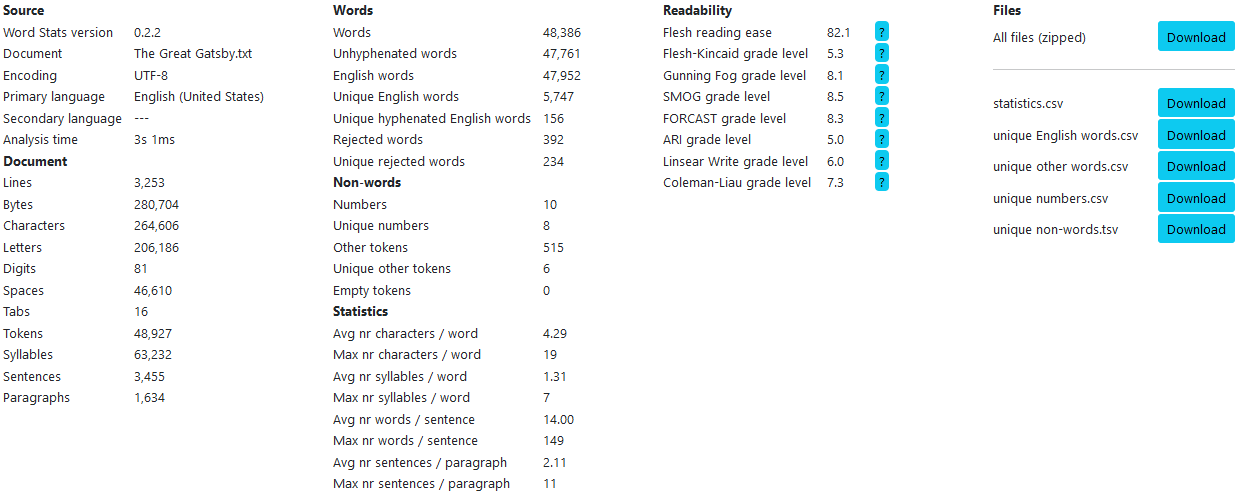
For the readability metrics, links to the corresponding Wikipedia articles are provided for easy reference.
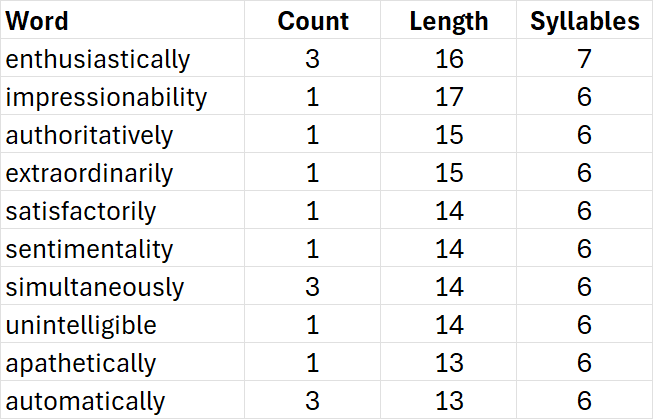
The statistics can be downloaded as file statistics.csv. Various supplementary files provide details; the .csv format makes it easy to open them in (e.g.) Microsoft® Excel. For example, the top 10 rows of unique en_US words.csv, when sorted by Syllables and then by (word) Length in descending order are:
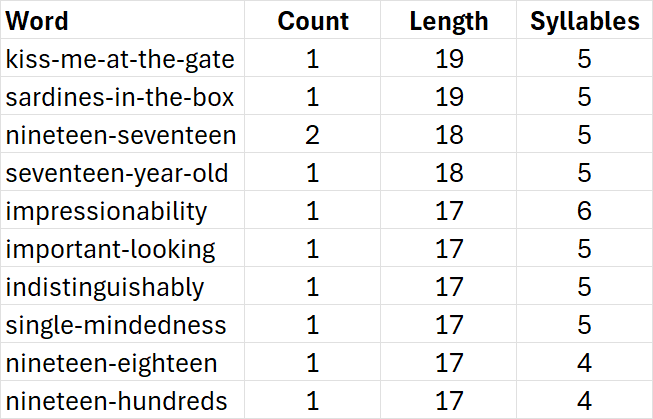
Likewise, the top 10 rows of this file when sorted by (word) Length in descending order and then alphabetically by Word are:
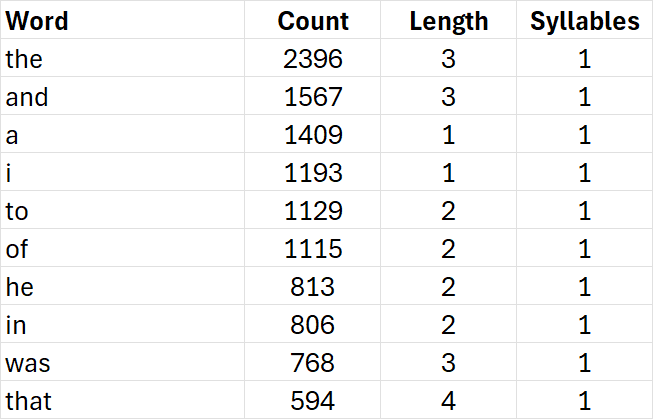
And these are the top 10 rows when sorted by Count in descending order:
When sorted by Length and then by syllables in descending order, the top rows of unique other words.csv, which lists the words that were not recognized as valid English words, are:
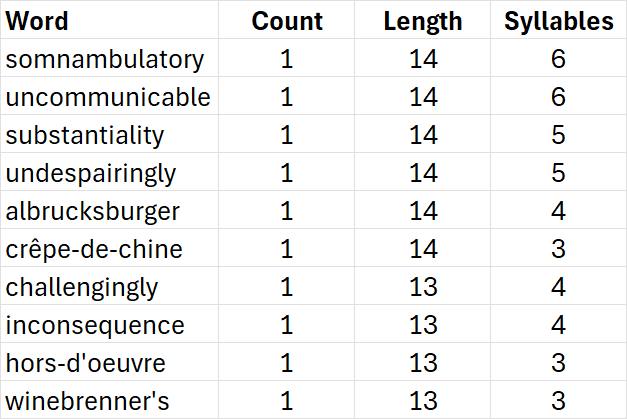
Note that these words could be recognized and counted by adding them to the Accept list.
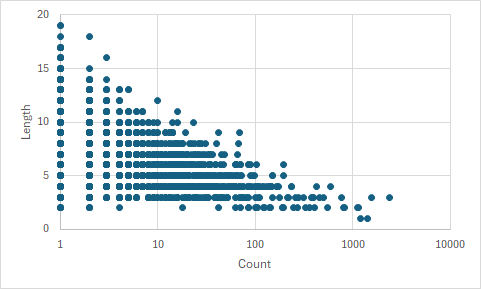
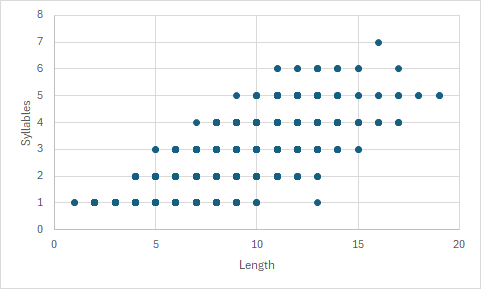
Finally, one can use (for example) Microsoft® Excel to create charts like these, both from unique en_US words.csv:
If you would like to do another analysis at this point, simply use Home to start over.
Discussion
Word Stats was originally developed for analyzing Microsoft® Word documents saved as plain text. Moreover, while supporting bilingual analysis and providing multiple pre-installed languages and locales, it was tested mostly with English (United States) and Dutch (Netherlands). It has not been assessed how well the analysis generalizes to text files from other sources, and how well the tool works with other languages and locales. The app is shared in hopes that is sufficiently useful.
While Word Stats aims at analyzing documents that are more-or-less complete, and a such is not a spell checker, inspecting the word lists generated by an analysis, especially the other words and the non-words, can provide interesting insights; this led to various tweaks of the multi-lingual refence document used for testing.
Finally, a fun side effect of the tool is that one can analyze a document in another language than it was written in. For example, whereas 5,701 unique words are recognized when analyzing the fragment of The Great Gatsby in English, 1,112 are found when analyzing it in French and 1,158 when analyzing it in Dutch.
Appendix A. Text file preparation
While text files can be created in many ways, Word Stats was built around Microsoft® Word documents exported as plain text files. This export is done by opening a Word document, selecting File --> Save As (or: File --> Save A Copy) and then selecting Plain Text (.txt) from the dropdown at the top. Save brings up the following dialog:
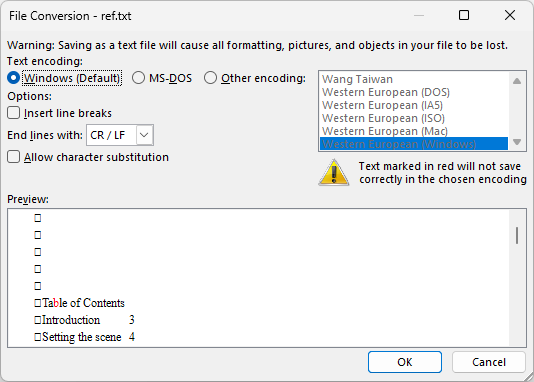
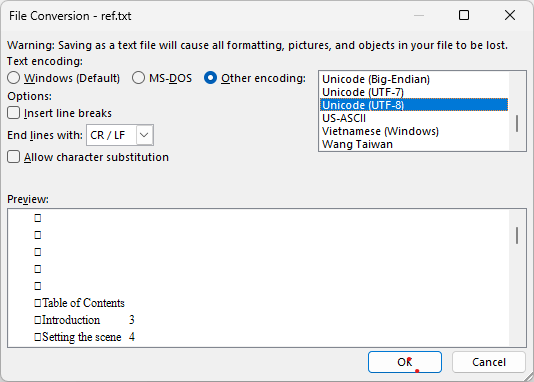
Good results have been obtained by selecting Other encoding and then Unicode (UTF-8), as in the screen shot below.1
Word converts each paragraph to a single line of text; this is the format that Word Stats uses for counting paragraphs. Footnote numbers are converted from example.12 to example.12 where the period can be any punctuation mark. Word Stats can recognize these numbers – each of which occurs twice, once as a reference and once with the footnote text – and exclude them from the number count. It can likewise recognize and ignore numbers associated with a table of contents.
Of course, there are many other ways to create a text file. It is up to the users to make sure that a file uploaded for analysis is indeed what they want to analyze. A brief discussion on working with PDF files is provided in Help/PDF to Text.
- Using the Ude.NetStandard library,
Word Statscan detect and supports the following text encodings/character formats: ASCII, UTF-8, UTF-16 Big and Little Endian, and UTF-32 Little Endian.
Appendix B. Analysis algorithm
Word Stats’ analysis proceeds as follows.
Split the text into lines separated by newline characters; Windows (CR LF), Unix (LF) and macOS (CR) formats are supported. Each line is then processed as follows.
Ignore empty lines.
Count the number of characters, letters, digits, spaces and tabs in the line.
Define a line with non-zero length as a new paragraph.
If Process TOC is enabled, check if the line is part of the table of contents, which is defined as starting with the text Table of Contents and continuing as long as subsequent lines end with a whole number. TOC processing simply means that the TOC numbers are ignored in the number count. This feature is currently only available when the primary language is English.
If Process hyperlinks is enabled, detect and remove any hyperlinks from the line. Count the hyperlinks and store new ones in a list. Hyperlinks are defined as a string without tabs or spaces that ends with a period (.) followed by a top level domain name optionally followed by a backslash (/), followed by a space or by a punctuation character (, . : ; ! ? …). The top-level domain names that are taken into account are .com, .edu, .gov, .net, .org and all 247 country domains. Examples of valid hyperlinks are microsoft.com and https://www.sunnysideupsoftware.com/.
If Process footnotes has been enabled in Preferences, find and count any footnote numbers, remove them from the line, and add them to a list. These numbers are defined by a punctuation mark followed by a whole number followed by a space or new line; for example,
.6or;7.Word Statsmakes sure that these characters are not part of a legitimate number, such as12.6. Footnote processing simply means that the numbers recognized as footnote references are ignored in the number count.Clean the line by
- removing characters with zero length (e.g., zero length dash, zero width space);
- replacing non-period sentence-ending punctuation marks (? ! ...) by a period;
- replacing periods followed by a double quote by a period (to assist sentence segmentation);
- replacing special spaces (e.g., thin space, hair space) by a regular space;
- replacing forward slashes and tabs by spaces (e.g., ‘yes/no’ becomes ‘yes no’ which will be processed as separate words);
- replacing non-hyphen dashes (e.g., non-breaking hyphen, figure dash, en dash, em dash, horizontal bar) by a hyphen surrounded by spaces;
- replacing consecutive spaces by a single space.
Split the line into sentences. This sentence boundary detection, also called sentence segmentation, is a non-trivial operation. Notably, it is hampered by abbreviations containing periods: by simply splitting lines whenever a period followed by a space is encountered, a sentence like “Prof. Dr. XYZ was born in the U.K. but has lived in the U.S.A. since 2010” would be counted as five sentences. While perfect segmentation may not be possible,
Word Statsuses PragmaticSegmenterNet -- a C# port of Pragmatic Segmenter -- to achieve high-quality rule-based multi-lingual sentence boundary detection. Note that PragmaticSegmenterNet does not support all languages and locales supported byWord Stats; see the table above. When segmentation is available, the rules for the primary language are used; if it is not available, sentence statistics are disabled.Split each sentence, possibly modified as per the above, into a list of tokens, which are strings of characters that are separated by spaces. The resulting tokens are then processed as follows.
If a token has no characters in it, update the Empty tokens count.
If a token does have characters in it, clean it by 1. replacing curly quotation marks (‘ and ’) by straight quotation marks ('); 2. removing any of the following characters: " “ ” ¡ ! ¿ ? : ; . , … ( ) 3. removing any leading and trailing hyphens (-) and single quotes ('). This preserves hyphenated words (e.g., brother-in-law) and apostrophes (e.g., she's, they're).
Check if the token is a valid number. If so, update the ‘Numbers’ count and store the number in a list if it is new. Proceed to the next token in the list.
If the token is not a number, create a lower-case copy of it.
Check the lower-case token for being a valid word, which is defined as a string of letters with zero or more hyphens and at most one apostrophe ('). Contractions (word with an apostrophe; e.g., didn't, it's) are counted as a single word.
Process each valid word as follows: 1. Update the total Number of words and the number of Words per sentence. 2. If the word has more than one character and either the original or lower-case version passes the primary language spell check or the lower-case version appears in the user’s primary language Words to accept list and the word does not appear in the primary language Words to reject list, or the word has a single character whose lower-case version appears in the primary language Words to accept list: 1. Count the word toward the Number of words in the primary language. 2. If the word is new (unique), add it to the Unique words list for the primary language. 3. If the word does not contain hyphens, count it toward the Unhyphenated words, else count it toward the Hyphenated words for the primary language. 4. Determine the number of syllables in the word with NHunspell’s hyphenator. For words that contain hyphens, the parts between hyphens are analyzed separately. The results is added to the Number of syllables found thus far. 5. Update statistics on Characters per word and Syllables per word.
3. Else, repeat step 16.2 for the secondary language if one has been selected.
4. If the word is not recognized in either language and has at least two characters, repeat step 16.2 for *Other words*.
If the token is neither a number nor a valid word, update the Other tokens count and store the token in the list of unique tokens if it is new.
At the end of each sentence, update the Sentences, Words per sentence and Sentences per paragraph statistics. Note that a sentence may be as short as a single word.
At the end of each line, update Paragraphs statistics. Note that a paragraph may be as short as a single sentence.
Once all lines are processed: if Process footnotes was selected, update the list of Unique numbers by subtracting one from the number of occurrences of each number that is present in the list of Footnote numbers, and removing entries that end up with zero occurrences.
If the primary language is English and no secondary language is selected, calculate readability metrics.
Save selected results to comma separated values files (*.csv). The Unique non-words (i.e., other tokens) file gets saved as a tab separated file (.tsv) instead, because the other tokens may contain commas that would interfere with the .csv format.